04 · Digital Modes
Integration with WSJT-X and JTDX — FT8, FT4, JT65, WSPR and more
FT8 Studio (beta) — FT8 inside RadioLog
Since version 4.1.0 RadioLog has its own FT8 window, in addition to the WSJT-X and JTDX integration explained below (which keeps working as before). It is in testing: use low power at first. The full guide, with CW and RTTY, is in chapter 12.
- You need WSJT-X installed: RadioLog uses its decoder (it does not include it). In Settings → FT8 Studio press "Search" or choose the WSJT-X folder.
- Sound and PTT: the sound card is chosen in Settings → Digital Modes and PTT in Settings → Radio / CAT (none/VOX, DTR, RTS or CAT, with delays). Put the radio in its data mode (DATA-U): RadioLog does not change the mode.
- Open the window from the digital modes menu and press "Start". Pick the band from the list (with CAT connected, your radio goes to the FT8 frequency).
- To call: double-click a station in the list; the sequencer (AutoSeq) sends the report, the confirmation and the 73, and logs the QSO. To call CQ choose message 6 and press "Transmit"; the "CQ to:" selector allows directed CQs (DX, NA, EU…).
- To stop: "Stop TX" cuts immediately. A TX watchdog (3 minutes without touching anything by default) stops the transmission by itself.
- Everything set once (AutoTX/AutoSeq, repeat counts, free-text macros, colours, new-station alerts, "Wanted" list, filters, working frequencies, QSO logging…) lives in Settings → FT8 Studio.
Important: the PC clock must be right (RadioLog can correct it by itself in Settings → General → Time, without touching the Windows clock).
Integration Architecture
RadioLog integrates with WSJT-X and JTDX transparently through two independent channels:
- UDP — WSJT-X automatically sends confirmed QSOs to RadioLog (port 2237).
- CAT relay — RadioLog shares radio control with WSJT-X via the Hamlib NET rigctl protocol (TCP port 4532).
Configuring WSJT-X — Step by Step
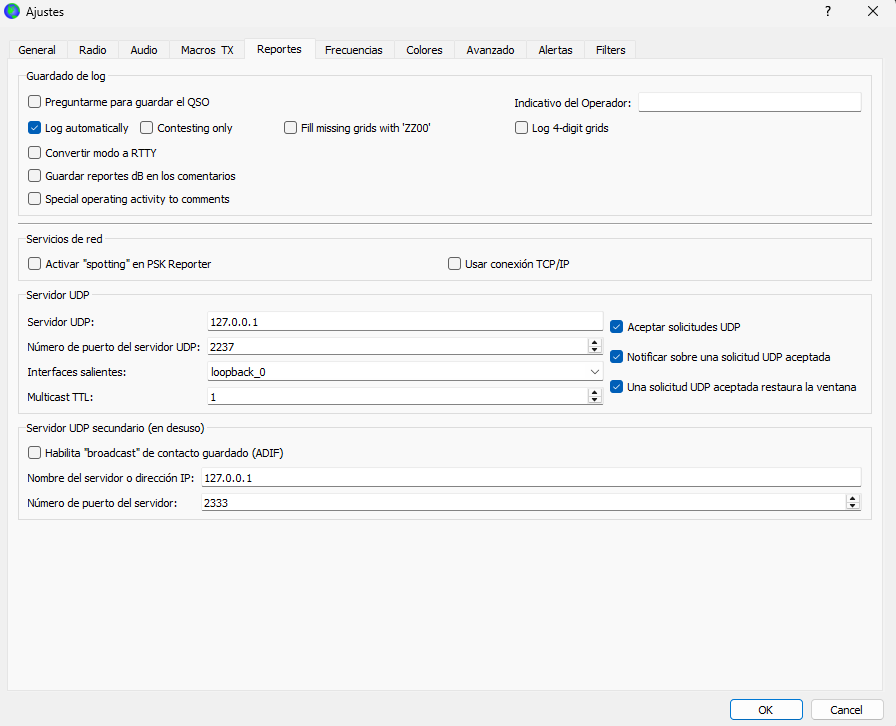
Step 1 — UDP (automatic QSO saving)
- In WSJT-X: File → Preferences → Reporting
- Enable ☑ Accept UDP requests
- UDP server:
127.0.0.1| Port:2237
From this point, every QSO you confirm in WSJT-X will be saved automatically to the RadioLog logbook.
Step 2 — CAT relay (frequency control)
- In WSJT-X: File → Preferences → Radio
- Rig: Hamlib NET rigctl
- Network server:
localhost| Port:4532 - Do not configure any serial port — RadioLog controls the radio.
- Click Test CAT. «CAT: OK» should appear in green.

Step 3 — PTT (radio keying)
For WSJT-X to transmit it needs PTT control. The recommended method is RTS on the second virtual COM port of the radio (the PTT/Enhanced port, different from the CAT port).
| Radio | CAT port (RadioLog) | PTT port (WSJT-X) |
|---|---|---|
| Yaesu FTDX10 | COM3 (CAT) | COM4 (PTT/Enhanced) — RTS |
| Yaesu FT-991A | COM3 (CAT) | COM4 (PTT/Enhanced) — RTS |
| Yaesu FT-710 | COM3 (CAT) | COM4 (PTT/Enhanced) — RTS |
| Icom IC-7300 | COM3 (CI-V) | COM4 (PTT) — RTS or VOX |
Step 4 — RadioLog Configuration
In RadioLog: Settings → Digital Modes

Recommended Startup Order
- Power on the radio
- Launch RadioLog — connects CAT automatically
- Launch WSJT-X — connects to the relay and log automatically
WSJT-X can start before RadioLog without issue — it will retry the connection automatically.
FT8 QSO Flow
- WSJT-X receives and transmits according to the FT8 protocol.
- When you complete a QSO in WSJT-X, WSJT-X sends it via UDP to RadioLog.
- RadioLog receives it, adds DXCC, continent and CQ zone from the local prefix file (cty.dat) and saves it to the logbook automatically.
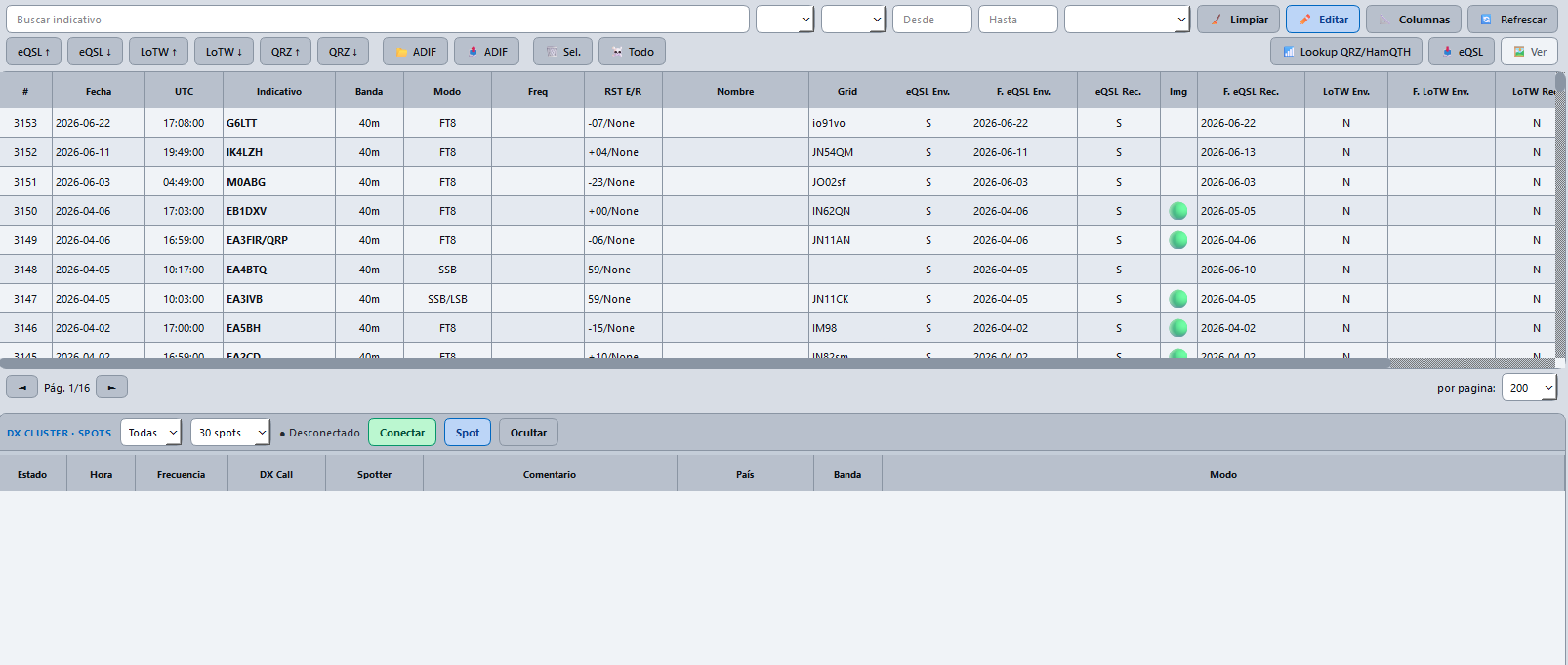
- In the RadioLog main window you will see the new QSO without having entered anything manually.
Configuring JTDX
The process is identical to WSJT-X. JTDX also uses the WSJT-X UDP protocol for logging and Hamlib NET rigctl for the CAT relay. The same ports (2237 for UDP, 4532 for CAT) work with both programs. Do not use both at the same time with the same radio.
FLDigi Integration
FLDigi can connect to RadioLog's CAT relay at localhost:4532. For automatic logging from FLDigi, see the FLDigi documentation for XML-RPC or UDP integration. This integration is under development in RadioLog.
Verifying Everything Works
Indicators in the RadioLog main window:
- VFO block: 🟢 CAT — radio connected. 🔴 CAT — no connection.
- Status bar (temporary message): «WSJT-X: WSJT-X connected» — appears when the first WSJT-X heartbeat is received. The UDP listener is active from RadioLog startup; no action needed.